





Pro Contractor Studio Knowledge Base
Browse PCS commands and open any topic for details.
Doors and Windows
← Back to All TopicsDoors and Windows
Menu: |
Draw
|
Toolbar Icon: |
|
 Doors and Windows
The Doors and Windows command will allow you to insert a single door, double door, sliding door, single pane window, or double paned window onto an existing line on the drawing. You cannot insert a door or window onto a curve, circle, or arc. All door symbols are automatically placed on the Doors layer in the Layer Manager. All windows are automatically placed on the Windows layer.
To insert a door or window:
Click on the icon associated with the style of door or window to add to the design.


Single
DoorDouble Door
Sliding Door
Single Pane Window
Double Pane Window
Enter the width of the door or window symbol in the Width text box.
Select an alignment for the symbol by clicking on the appropriate icon one time with the left mouse button.


Left Align
Center Align
Right Align
Click on the Add button to begin inserting a door or window symbol into the design.
Click one time on a line with the left mouse button to attach the door or window symbol to the line. The door or window symbol will appear on the screen.
Set a second point with the left mouse button to set the location on the symbol along the line.
If the symbol is a double door, move the mouse cursor up, down, right, or left to determine if the door will open in or out.
If the symbol is a single door, moving the cursor to each quadrant will determine if the door will open in or out and swing from the right or left.
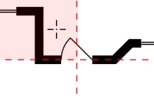
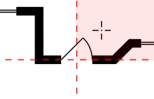
Opens out from the right
Opens out from the left
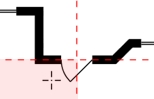
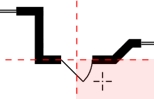
Opens in from the right
Opens in from the left
Click on the Close button to exit the dialog box.
To remove a door or window:
Click on the Delete button.
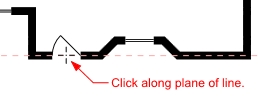
Click on the symbol along the plane of the line on which the symbol is located to remove the symbol from the design.
Click on the Close button to exit the dialog box.
Note:
Press and hold down the Spacebar on the keyboard to enact the "Entity Snap" feature to assist in door or window placement.
A door or window symbol is not a separate entity on the design screen. You cannot select a door or window symbol with the mouse.
You can change the color of all door or window symbols by adjusting the color of the associated layer in the Layer Manager.